How Do I Upload a SCORM Package?

Modified on Thu, 15 Jan at 11:58 AM

SCORM stands for Shareable Content Object Reference Model. It is a technical standard widely used for e-learning content. If you develop an online training using an external tool, you can often export it as a SCORM package.

You can then import this SCORM package into Studytube, making the training available through the learning portal. This allows you to centralize your learning offerings and ensure employees can access all their trainings in one place.


Which File Types Does Studytube Support?

A SCORM package is always a .zip file. You do not need to unzip this file; simply upload it as is in the LMS.

Studytube supports the following formats:

  • AICC

  • SCORM 1.1

  • SCORM 1.2

  • SCORM 2004 (3rd and 4th edition)

  • xAPI / Tin Can API

  • cmi5

⚠️ Important: A SCORM file may be a maximum of 1000 MB. If your file is larger, please contact Technical Support via service@studytube.nl.

How Do You Upload a SCORM Package?

  1. Go to Library > Create.

  2. Click Create an online training.

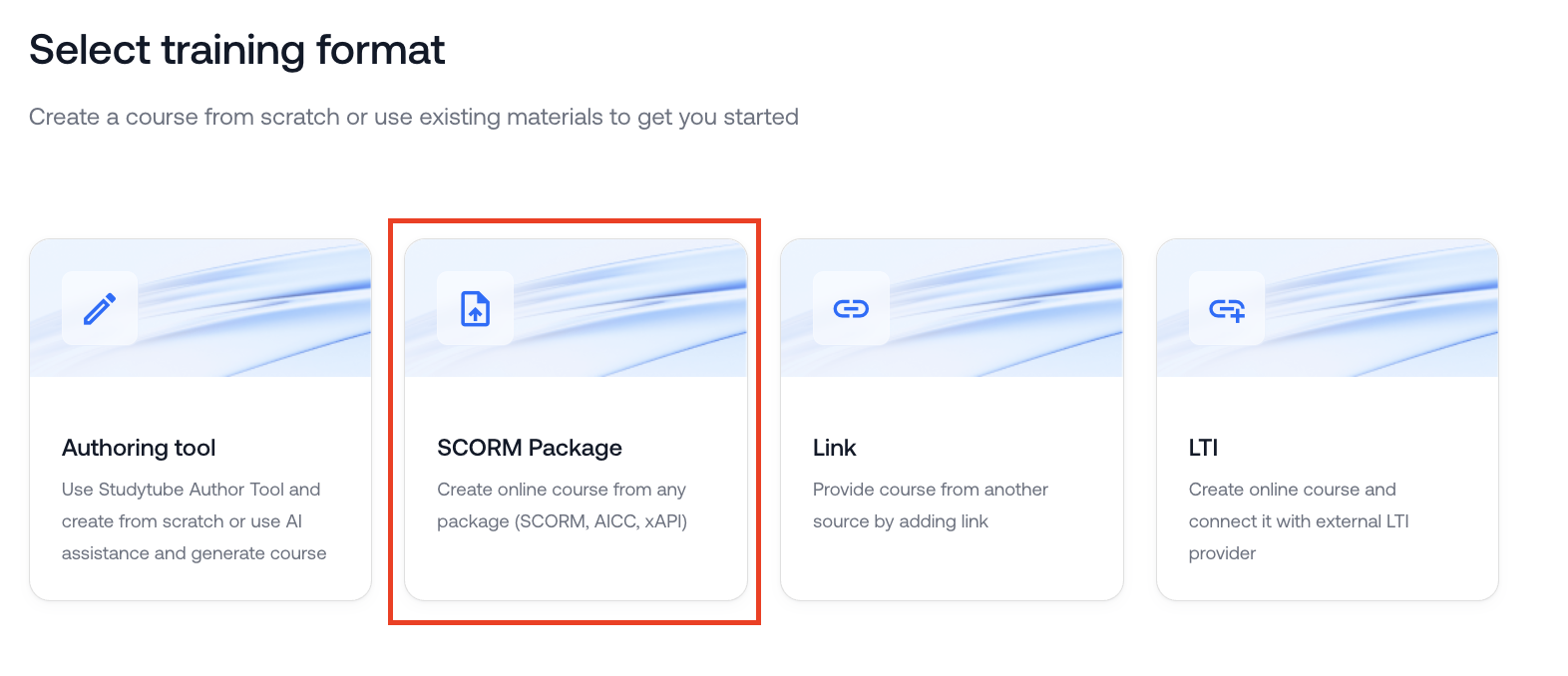
  3. Select the option SCORM package.

  4. Upload the .zip file (your SCORM package) and give the training a name.

After uploading, you can further configure the training just like any other online training.

⚠️ Note: Uploading may take several minutes. You do not need to keep the page open; the upload continues in the background.
If you still do not see a button to publish the training after 24 hours, please contact service@studytube.nl.


If you’d like, I can also adapt this article to a shorter version or align it more closely with your help center tone of voice.


Was this article helpful?

That’s Great!

Thank you for your feedback

Sorry! We couldn't be helpful

Thank you for your feedback

Let us know how can we improve this article!

Select at least one of the reasons
CAPTCHA verification is required.

Feedback sent

We appreciate your effort and will try to fix the article