This article explains how to remove learnings from an employee’s learning overview. The steps depend on the type of learning.
For Learning Tracks, Online Courses, Videos, Articles, and Documents
You can remove these learnings in two ways:
Via the learning overview in the employee’s account
Via Development > Insights > Learning Progress
To remove a learning:
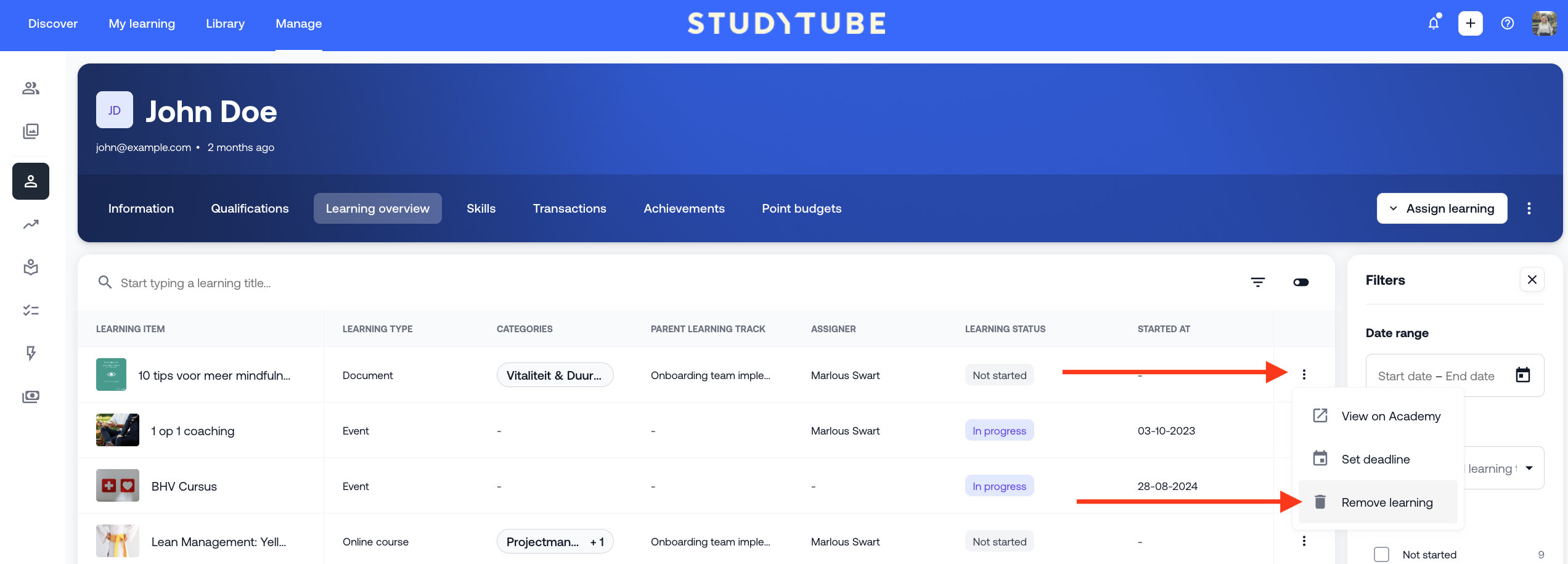
Go to the learning you want to remove
Click the three dots on the right-hand side
Select ‘Remove learning’
Note: When you remove a learning Track, the individual learnings within that Learning Track (such as online trainings or articles) are not automatically removed from the learning overview. If you also want to remove those, you’ll need to do so manually. Additionally, a learning that is part of a learning track cannot be removed from the learning overview before the learning track has been removed from the overview.
For Events and In-company Trainings
Internal events and in-company trainings cannot be removed directly via the learning overview.
What can you do instead?
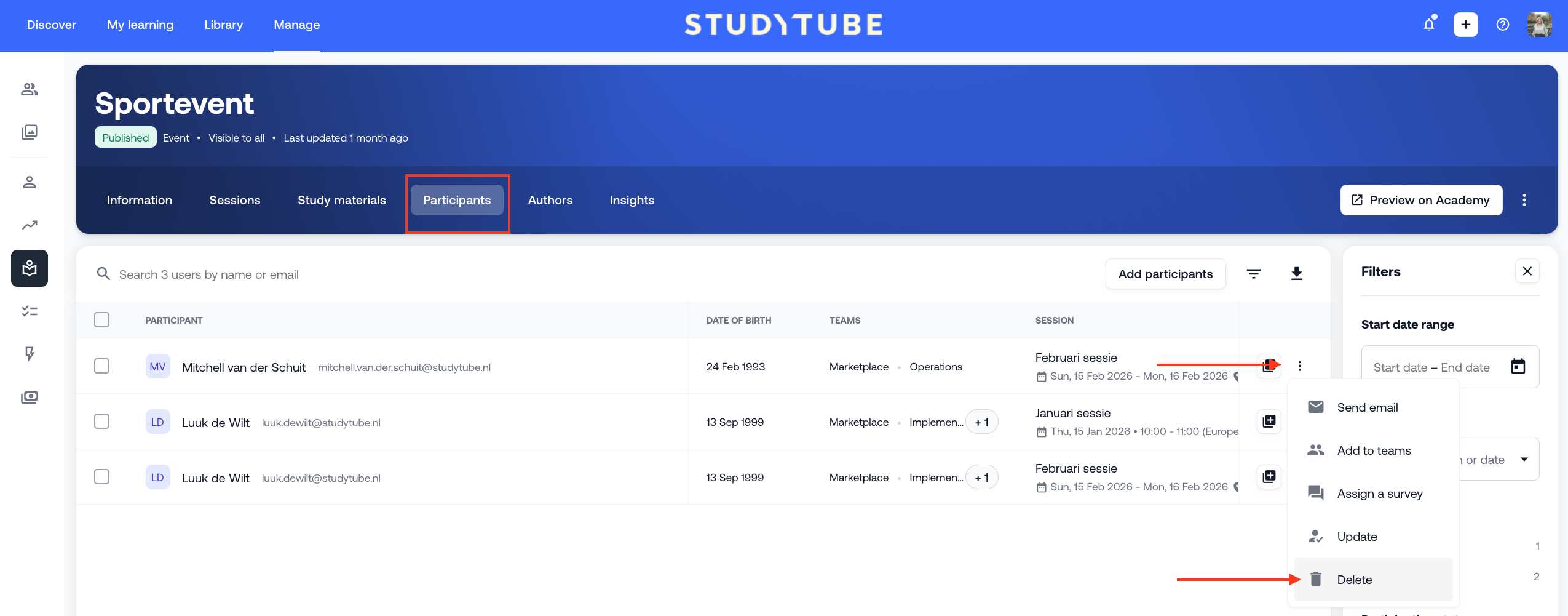
Unenroll the employee from the session they are registered for
This is only possible if the session has not yet been finalized
Once the session is finalized, the event will remain visible in the learning overview and can no longer be removed
For External Offer
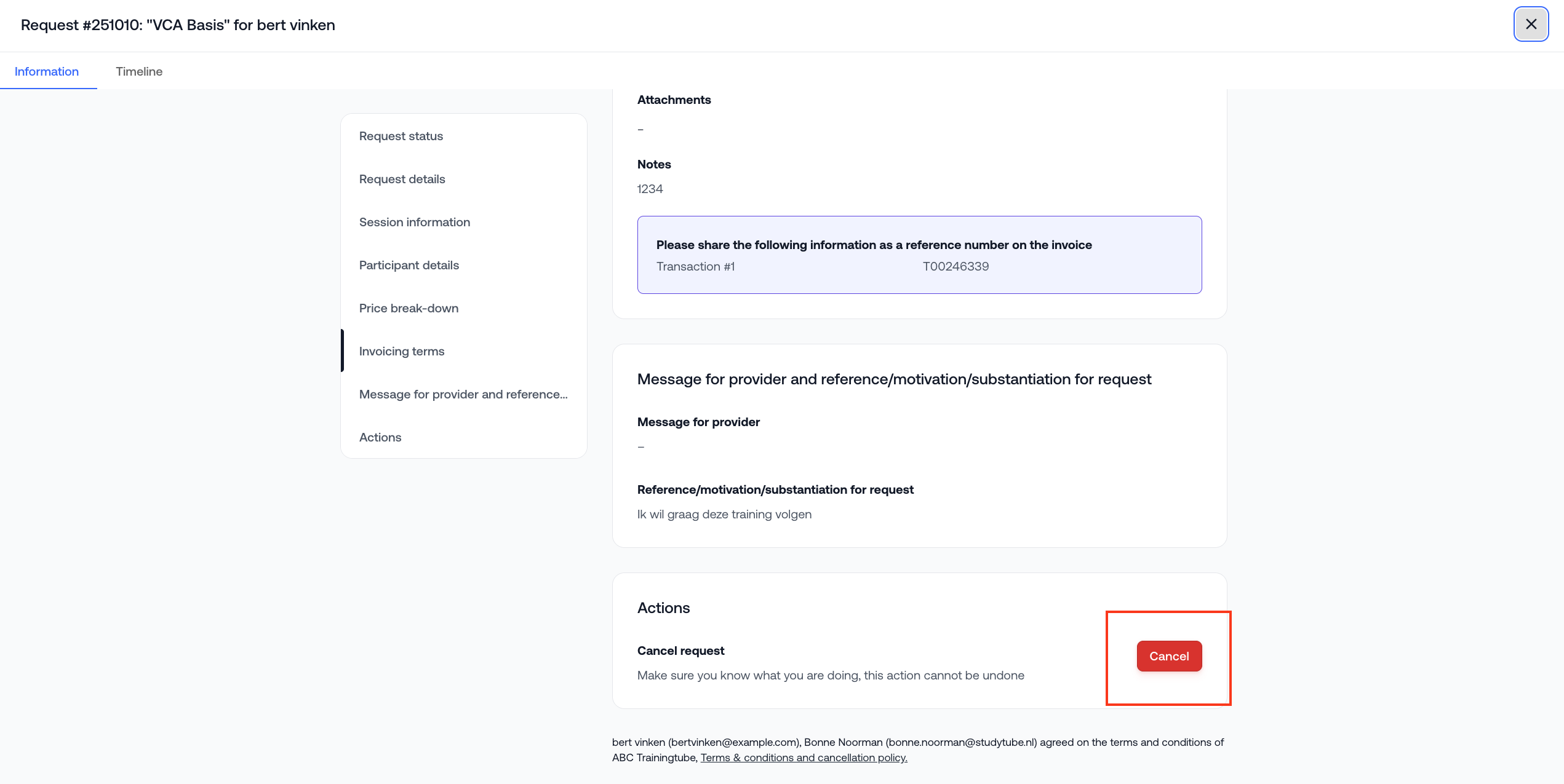
You can remove marketplace/external learnings by cancelling the related request. This is only possible if the training’s start date has not yet passed. If the start date is in the past, only the training provider can cancel the request.
Note: Cancelling a request via the LMS may result in cancellation fees charged by the provider. Be sure to check this before proceeding with the cancellation.
Bulk removal of learnings
Do you want to remove multiple learnings at once from the learning overview of a single employee?
Or do you want to remove learnings across multiple employees at once? This is possible via the ‘Learning Progress’ report.
Note: This is only possible for the following learning types: Learning Tracks, Online Trainings, Videos, Articles, and Documents.
Here’s how:
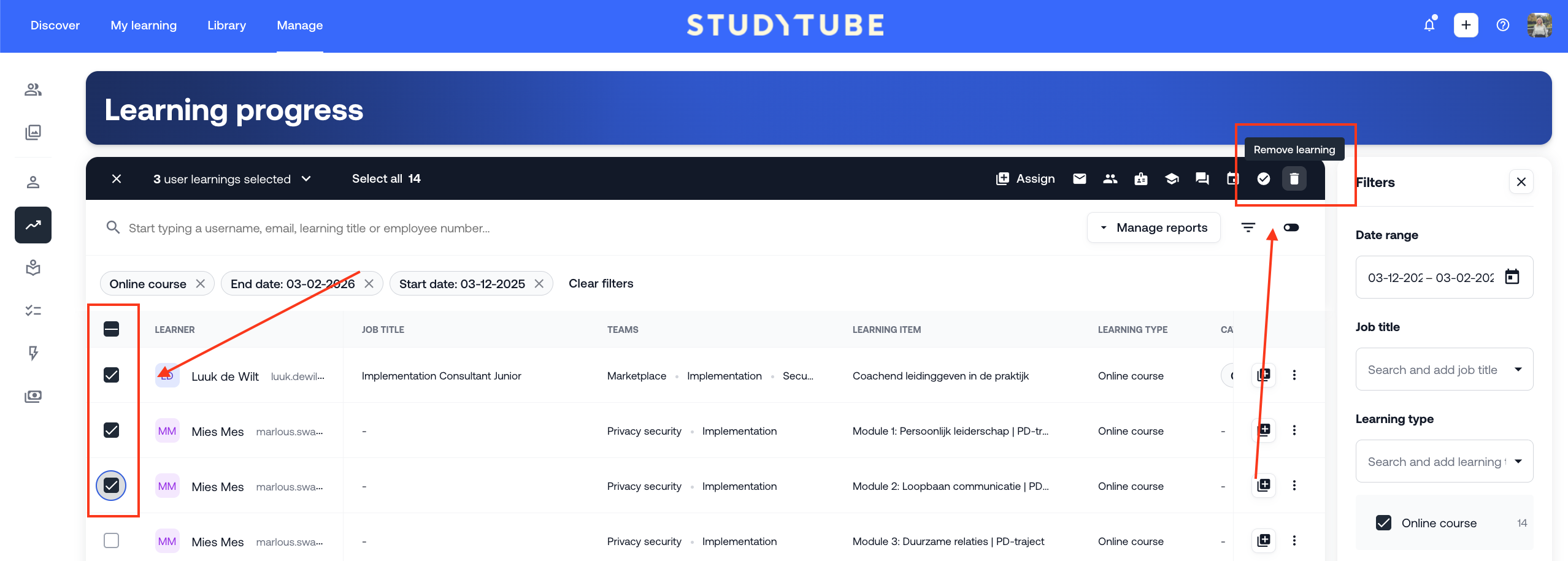
Go to Development > Insights > Learning Progress
Select the learnings you want to remove
A black bar will appear at the top of the list
Click the trash icon on the right side of the black bar to delete the selected learnings
Warning: This action cannot be undone. Always double-check that you’ve selected the correct learnings before proceeding.
Was this article helpful?
That’s Great!
Thank you for your feedback
Sorry! We couldn't be helpful
Thank you for your feedback
Feedback sent
We appreciate your effort and will try to fix the article