This dashboard gives you a clear, at-a-glance overview of learning activity within your academy. It enables you to effectively manage engagement, activation, and progress across teams. You can find it under Manage > Development > Insights > Users Activity.
In this dashboard, you will find an overview of:
Self-initiated learnings
Assigned learnings
Learnings started per team
Active days of the week
Active hours of the day
Users Activity Overview
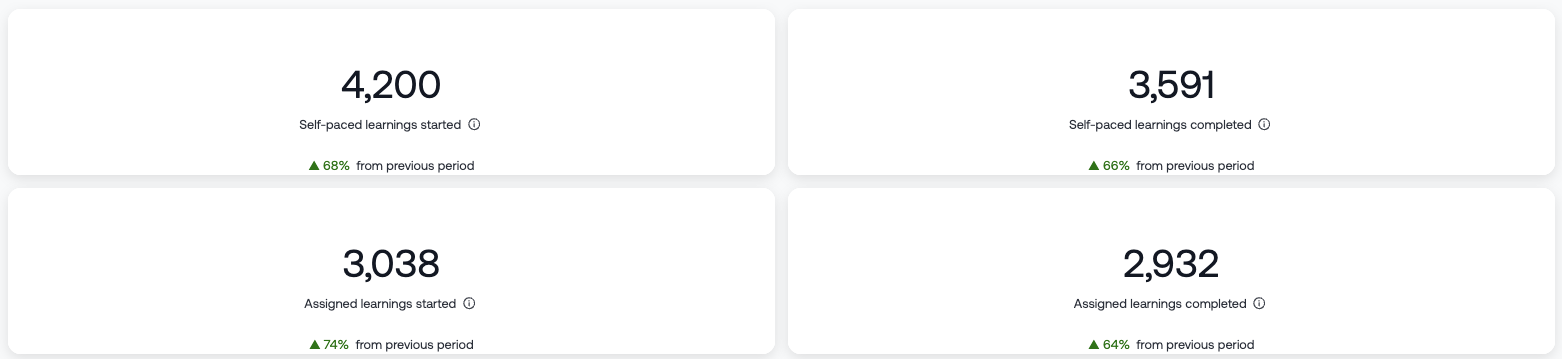
At the top of the dashboard, you’ll see four key tiles summarizing overall learning activity:
Self-initiated learnings: The number of learnings users have started on their own initiative.
Self-initiated learnings completed: The number of learnings users have completed on their own initiative.
Assigned learnings started: The number of learnings that were started after being assigned.
Assigned learnings completed: The number of assigned learnings that have been completed.
Each tile also includes a comparison with the previous period, so you can quickly spot increases or declines in activity. To see which specific learning was started or completed, simply click on the number in the tile.
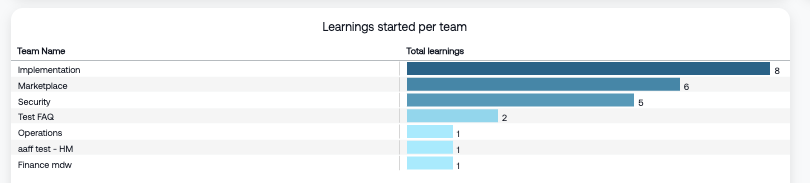
Learnings Started per Team
The Learnings Started per Team chart shows the total number of learning activities per team.
This helps you understand:
Which teams are most active in the Academy
How learning activity is distributed across the organization
Where additional engagement or activation may be needed
You can use these insights to better support and engage specific teams. Click on a bar in the chart to view detailed data at user level.
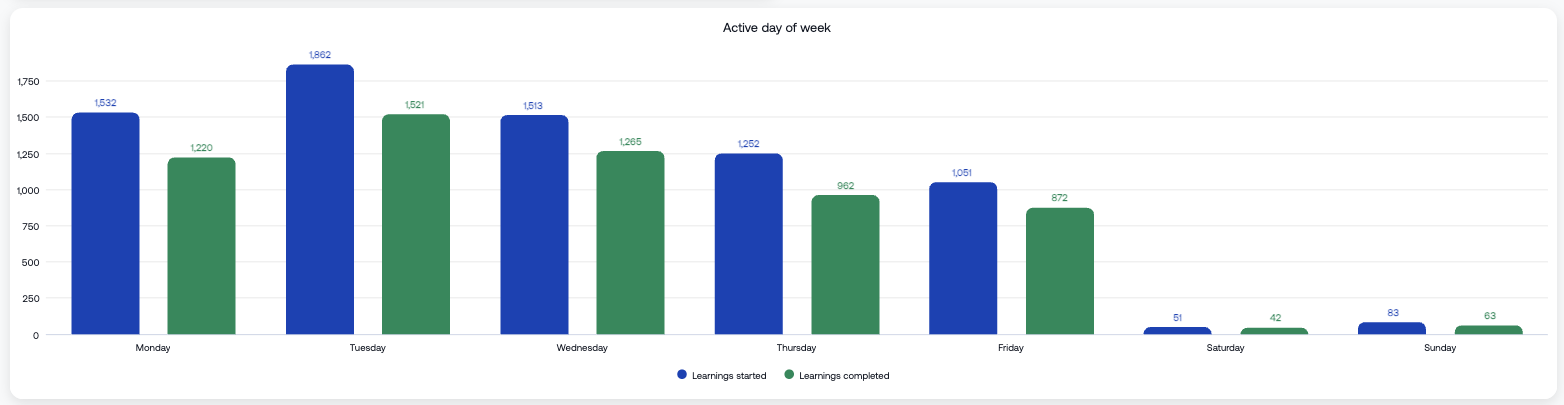
Active Days of the Week
The Active Days of the Week chart highlights the days on which users are most active in starting and completing learnings.
This gives you insight into:
Which days the learning environment sees the highest usage
Whether there’s a difference between when learnings are started and completed
Weekly patterns in learning behavior
These insights can help you better schedule communications or reminders. You can also click on the chart bars to drill down to user-level details.
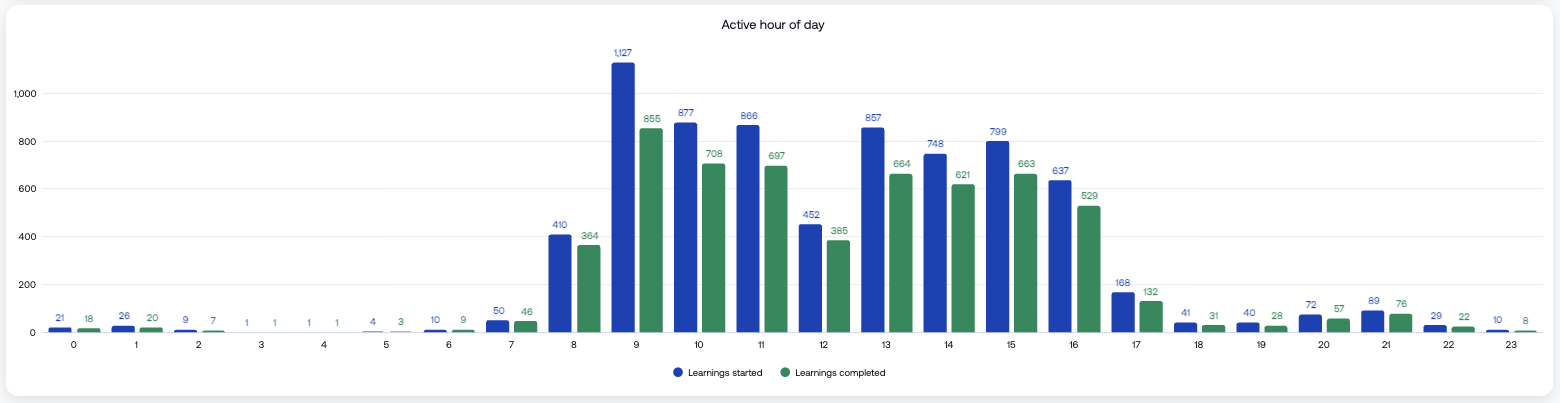
Active Hours of the Day
The Active Hours of the Day chart shows the times of day when users start and complete learnings.
This helps you:
Identify peak learning moments during the day
Understand when users are most engaged in learning
Align communication or activation strategies with these peak times
To explore peak activity at user level, click on the chart bars.
Filter Options
Use Filters (top right of the dashboard) to refine the data shown. You can filter by:
Date – Adjust the time period (default: last 30 days).
Team – Select a specific team.
Exclude subteams – Show only the selected team, excluding any underlying subteams.
Employee – View data for a specific user.
Learning type – Filter by a specific learning type.
Hide archived content – Exclude archived content from the results.
Hide deleted employees – Exclude deleted users from the results.
These filters allow you to tailor the dashboard to your needs and focus on the insights that matter most.
Was this article helpful?
That’s Great!
Thank you for your feedback
Sorry! We couldn't be helpful
Thank you for your feedback
Feedback sent
We appreciate your effort and will try to fix the article