The User qualification matrix gives you a clear, at-a-glance overview of each user’s qualification status, broken down by qualification.
Empty matrix and filters
By default, the User qualification matrix is empty. Data is shown only after you select at least one team.
How it works:
Select one or more teams using the filters in the right-hand panel
If no team is selected, no data will be displayed
You can select multiple teams at the same time
In addition to teams, you can apply the following filters:
User
Validity status
Expiration status
Qualification status
Required (yes/no)
Follow-up planned (yes/no)
Job title
Qualification
Qualification code
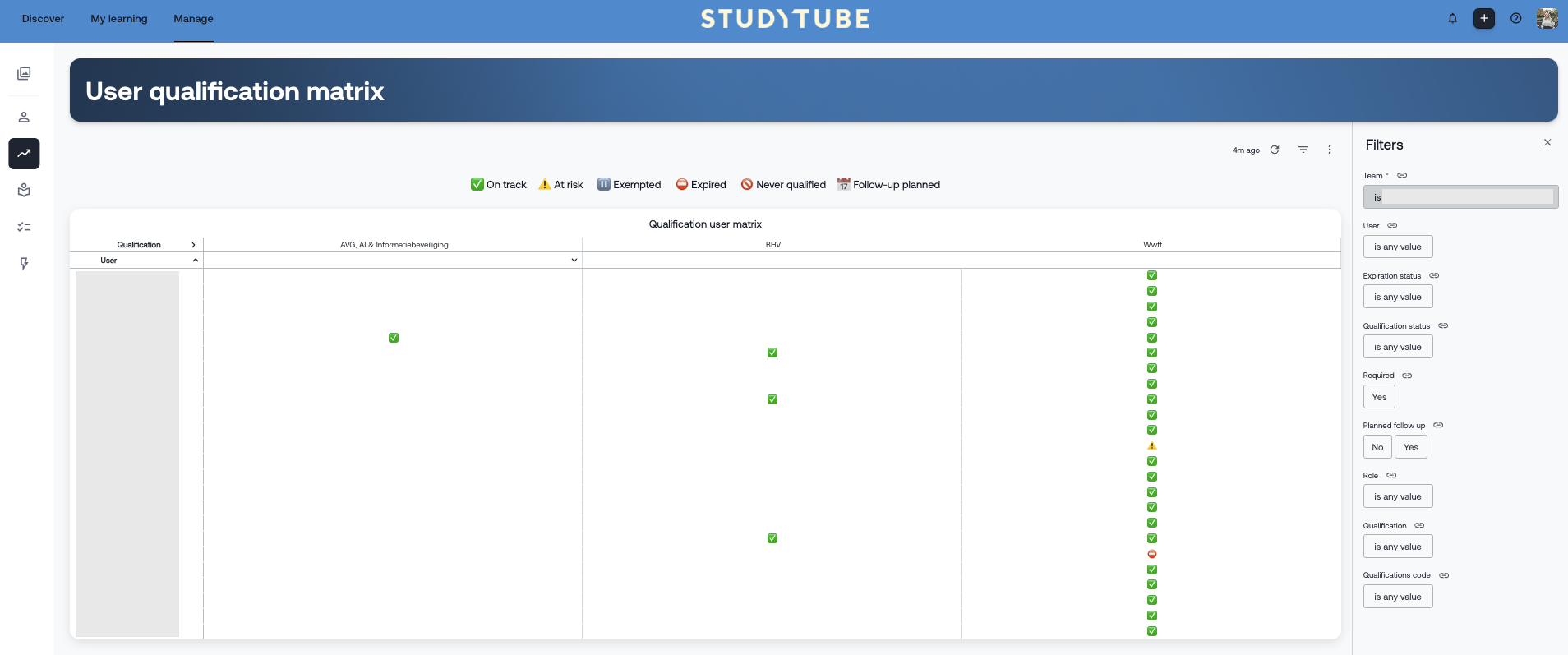
Qualification and validity statuses
Once the correct filters are applied, the matrix shows an overview of the qualification and validity statuses of your users. At the top of the page, you’ll find a legend explaining what each icon represents.
On track – the user has obtained the qualification and it is not due to expire
At risk – the qualification will expire soon. The length of the risk period can be configured in the qualification settings
Exempt – the user is temporarily exempt from this qualification
Expired – the user did not meet the recertification requirements within the required timeframe
Never qualified – the user has never obtained this qualification
Follow-up planned – the user is not yet qualified, but a session has already been scheduled (via an internal event or an external training provider)

If no icon is shown for a user, that qualification has not been assigned to them.
Viewing qualification details
Click an icon in the User qualification matrix to view the details of a specific qualification for a user.
You’ll see a year-by-year overview of completed learning activities and actions. In the example below:
The user’s BHV qualification expires on 28 December 2026
In 2024, the user:
Uploaded a performance
Received manual approval to complete the qualification
In 2025, the user again received manual approval
In 2026, no learning activities have been completed yet
The required option B (the refresher course 'BHV Herhaling') has not yet been completed

This makes it easy to track qualification progress, renewals, and validity per user.
More details per user
Want to see a complete overview of a specific user’s qualifications? You can quickly navigate to their qualification overview:
Click the user’s name
Select User qualifications
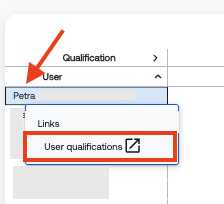
You’ll then see all related qualification details in one place.
Was this article helpful?
That’s Great!
Thank you for your feedback
Sorry! We couldn't be helpful
Thank you for your feedback
Feedback sent
We appreciate your effort and will try to fix the article