Would you like to issue certificates to employees after they complete a learning? In the LMS, you can easily create and design your own certificate template, aligned with your organization's style.
Where do you set up a certificate template?
In the LMS, go to:
Manage > Academy settings > Certificate templates > Create template
This is where you start creating a new certificate template.
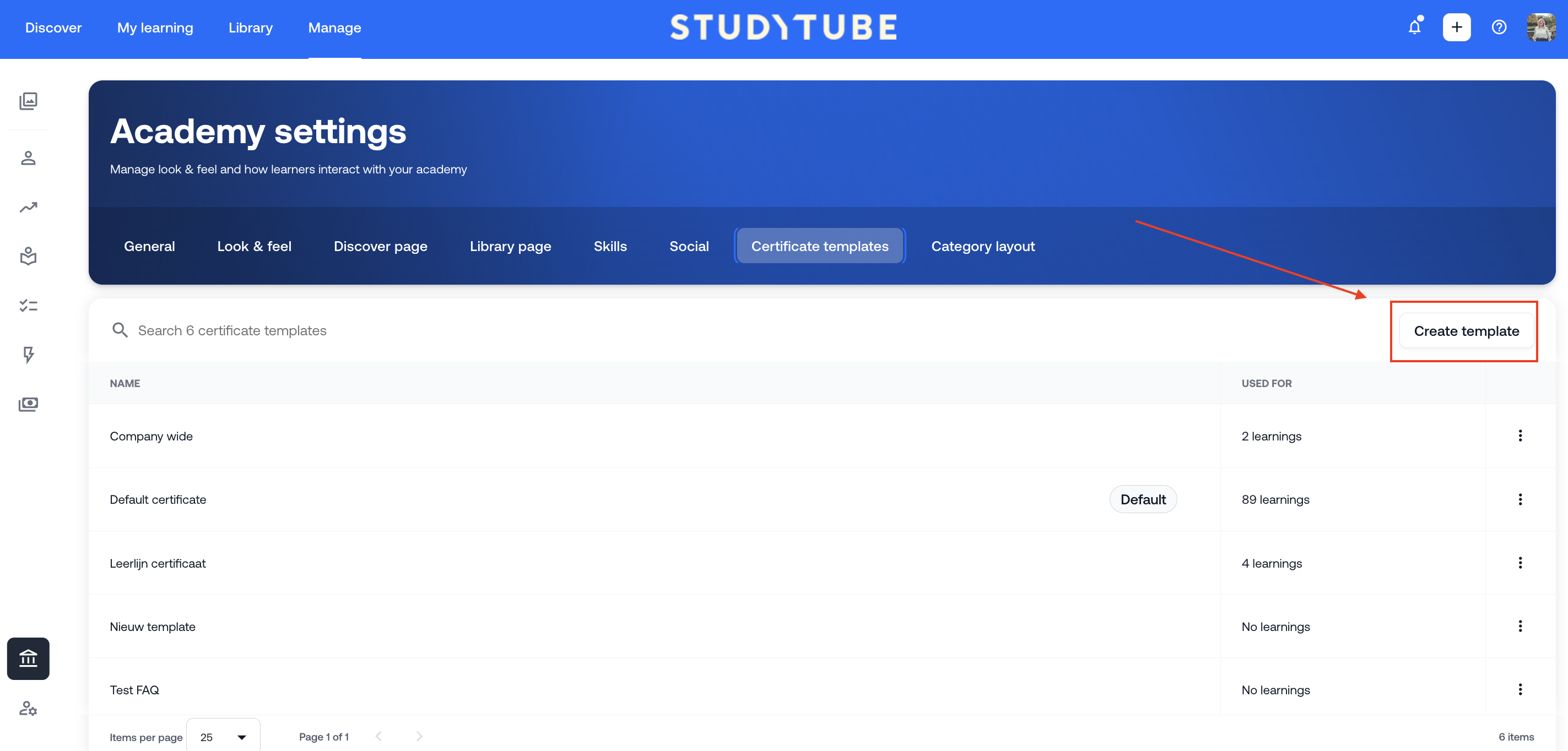
Step-by-step: Creating a template
Give the template a recognizable name, so you can easily find it later.
Choose whether this should be the default template. A default template is automatically used when you enable the certificate option in a learning. (See explanation below.)
What can you customize in the template?
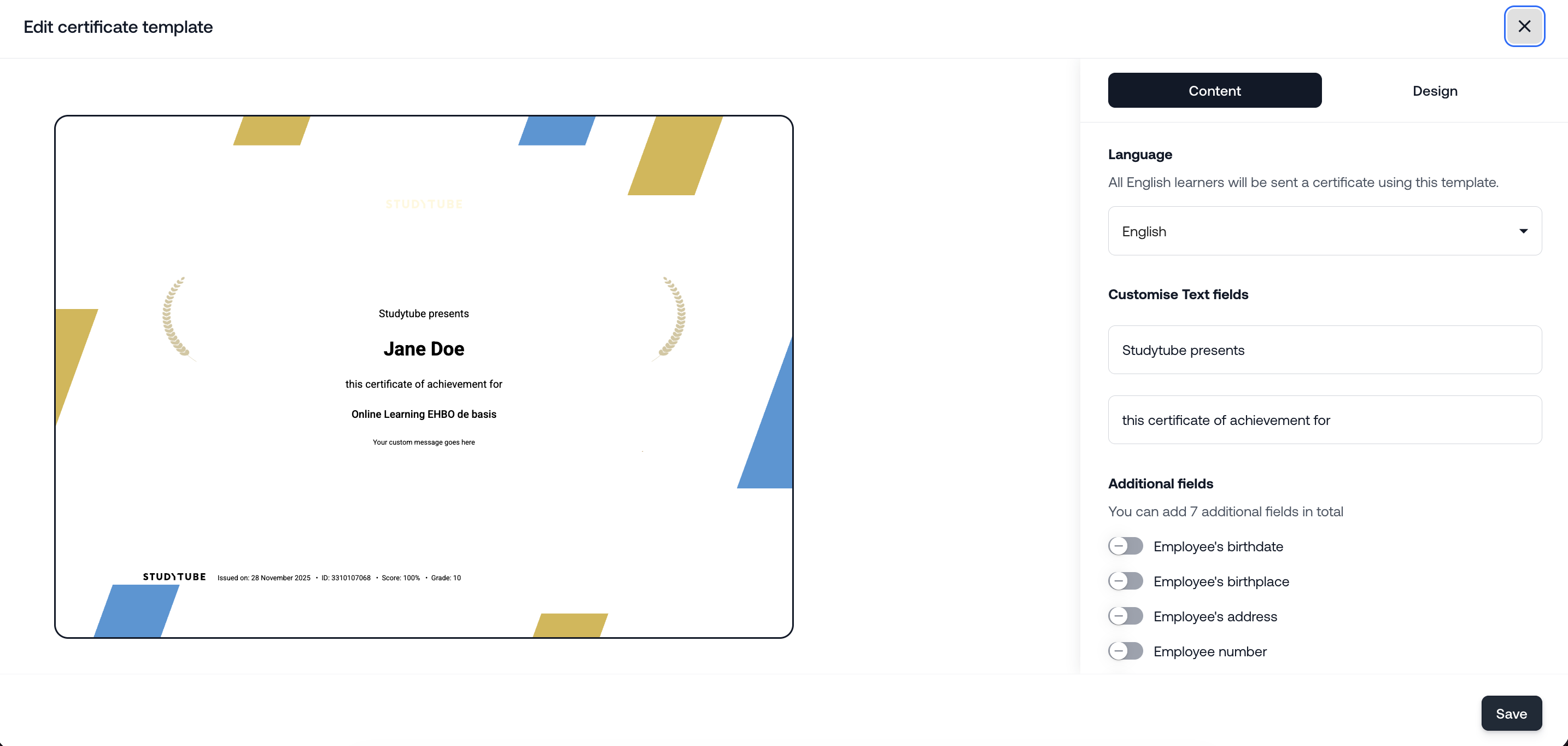
Content
You can decide what information appears on the certificate. For example:
The language of the certificate. You can configure a template in multiple languages. Change the language under the ‘Language’ section to edit the text for that specific language. The certificate will automatically be generated in the language the employee has selected in their personal settings.
The text displayed (e.g., “Has successfully completed...”)
Additional details, such as:
Date of birth
Name of the trainer or supervisor
Number of earned educational points
Design
Make sure the certificate visually matches your organization or academy. You can customize the following:
Orientation: portrait or landscape
Add your organization’s logo
Set a background image (e.g., a branded template)
Insert a stamp or signature for official recognition
Add borders or decorative elements for a professional look
Tip: Keep the design clean to ensure all important information remains readable.
Don’t forget to save the template once you’re finished.
How do you link a certificate to a learning?
Once your template is ready, you can link it to a learning. You do this via the learning’s settings under the Certificates section. After the learning is completed, the certificate will automatically appear in the employee’s ‘My achievements’, including their personal details.
Extra explanation: the default template
Each academy must always have one default certificate template.
The default template is automatically applied when the certificate option is enabled in a learning. You can still select a different template afterwards if desired.
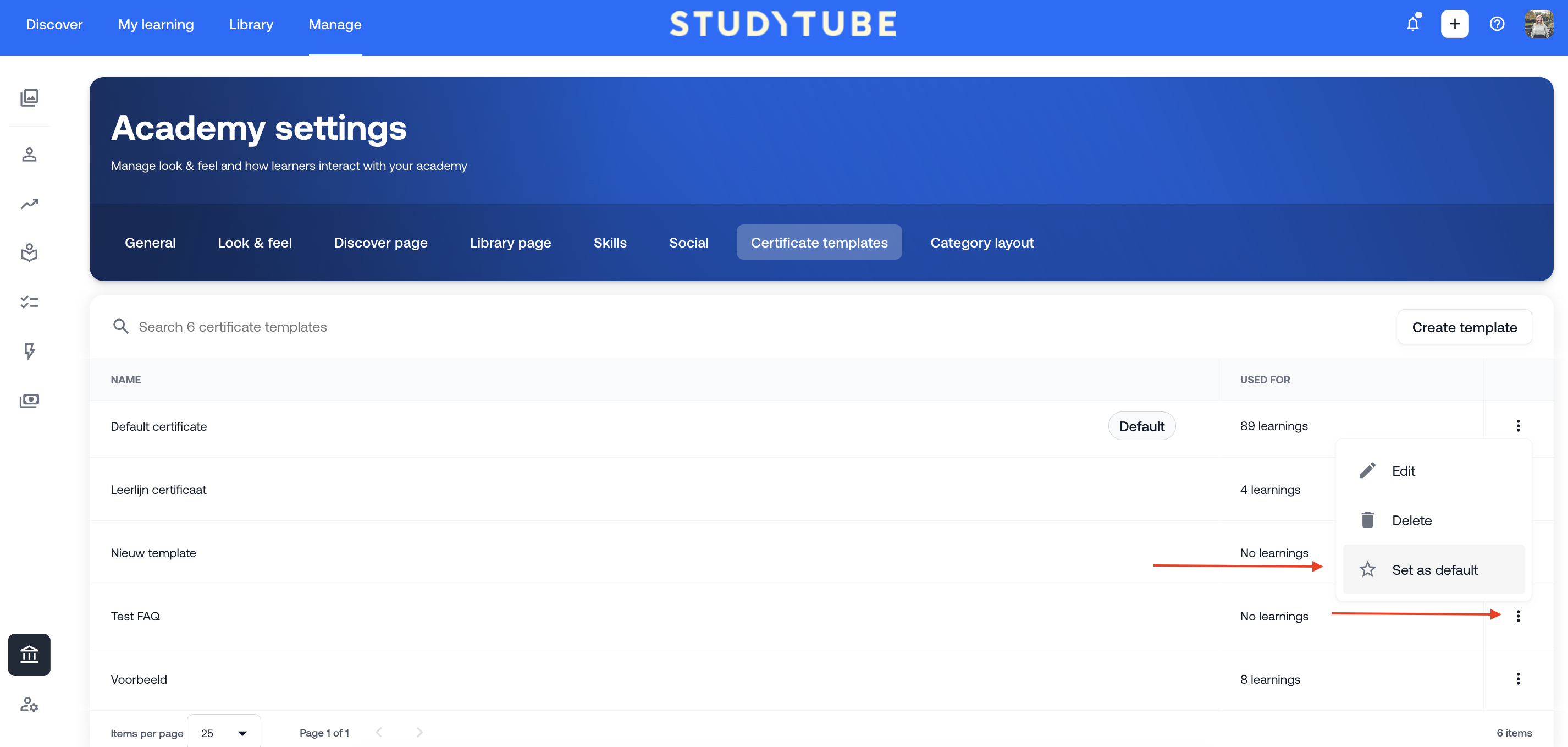
Want to set a different template as default?
Go to Admin > Academy settings > Certificate templates, click the three dots next to the relevant template, and select ‘Mark as default’.You cannot delete the current default template unless you first set another one as default
Was this article helpful?
That’s Great!
Thank you for your feedback
Sorry! We couldn't be helpful
Thank you for your feedback
Feedback sent
We appreciate your effort and will try to fix the article